
Look, scale and multiple monitors
Short version for experts: tables, lists and screenshots only.
Words in this lesson (3)
Color theme
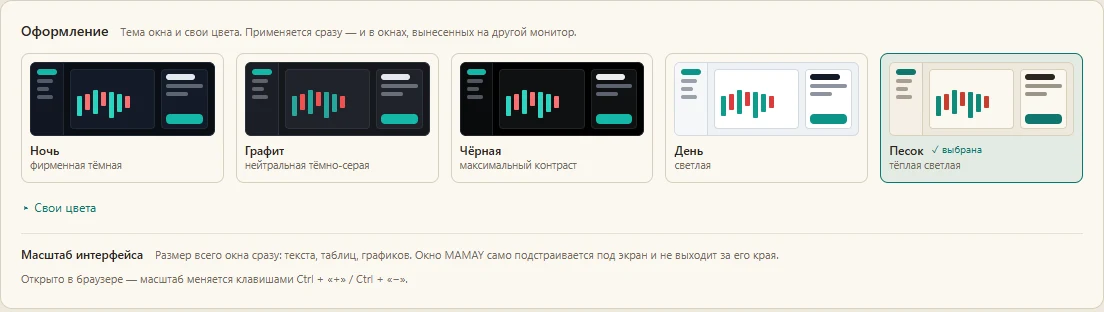
Open Settings — the first card is called "Appearance". It has five ready-made themes: three dark ("Night", "Graphite", "Black") and two light ("Day", "Sand"). Click a theme and the window is repainted instantly, no restart needed.
Below is the "Your colors" block: you can change the background, the text color, and the colors for rising and falling. Charts and order books are repainted together with the window.
Scale: so everything fits
MAMAY picks the scale for your monitor size at launch — on a laptop the interface gets smaller, on a large monitor bigger. If you'd like it different, the same card has scale buttons: smaller, bigger and "auto".
A tab in a separate window
If you have two monitors, it's handy to keep a chart on one and a screener on the other.
- Hover over a menu item — a ⧉ icon appears on the right. Click it and the tab opens in a separate window.
- Or simply drag the menu item outside the window — the tab opens wherever you release the mouse.
- Individual zones and helper windows can be moved out the same way: the calendar, the calculator, the clock, "Account".
Hide amounts
The "Account" block has a "👁 hide" button. Click it and all money amounts are hidden. Click again — they come back. This only affects the display; it has no effect on trading.
Desk
The "Desk" tab is a blank sheet where you can place widgets from different screens: for example, "US Opening Plan" next to "MOEX Premarket". Drag a widget by its header to move it, by its corner to resize it.