
Terminal: chart, order book and trading panel
Short version for experts: tables, lists and screenshots only.
Words in this lesson (28)
What's on the screen
The "Terminal" tab is the workplace for manual crypto trading. It has three main parts:
- The chart — candles, levels, wave counts, scenarios.
- The order book — buyers' and sellers' orders at every price.
- The trading panel — this is where orders are placed.
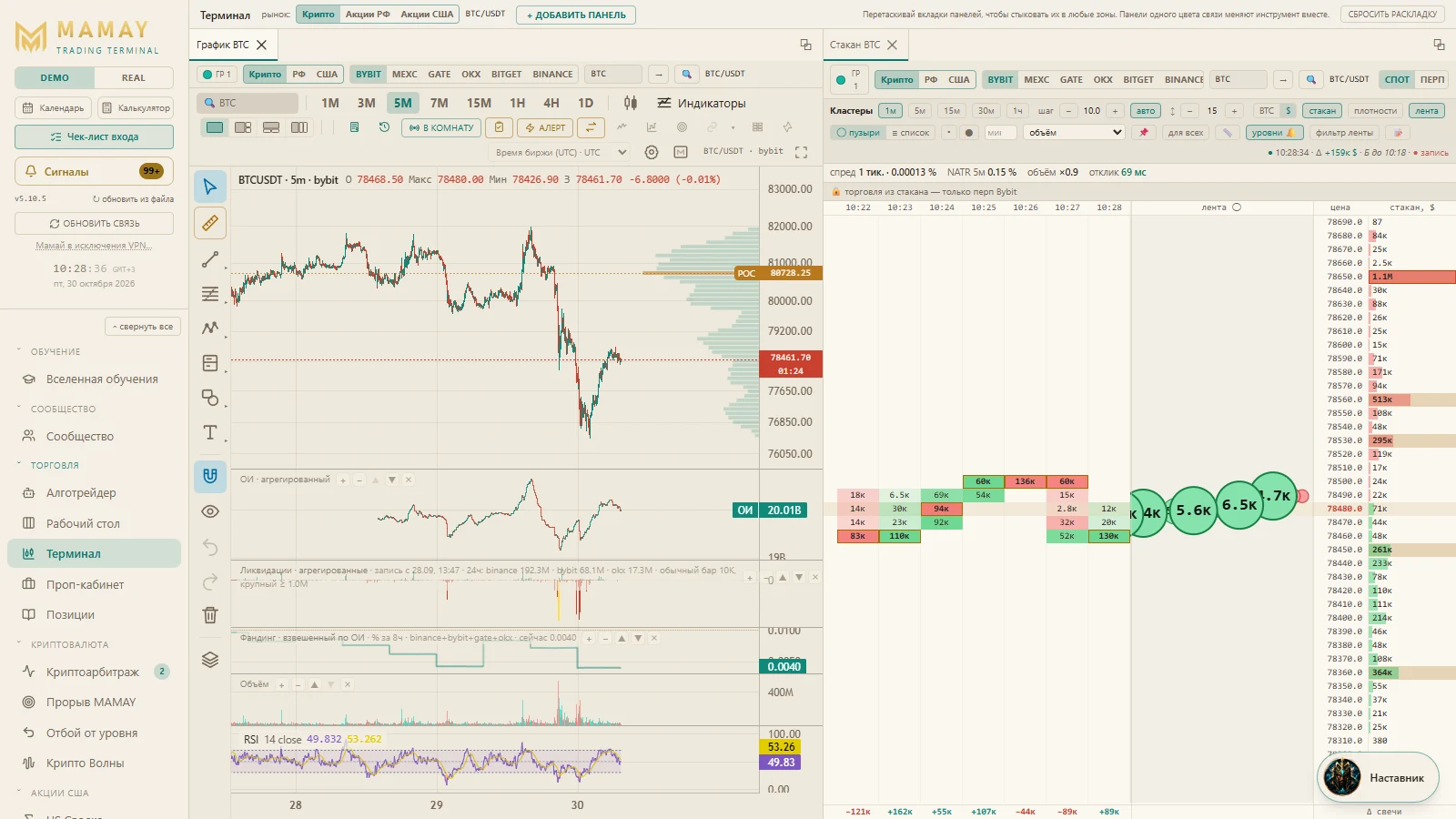
Panels can be dragged by their tabs and docked however you like. The reset-layout button brings back "chart + order book".
Chart timeframes: 1, 3, 5, 7, 15 minutes, 1 hour, 4 hours, 1 day. The rare 3 and 7 minutes are for crypto only: MAMAY builds them from one-minute candles starting at the beginning of the day (UTC). Without a subscription 1 hour, 4 hours and 1 day are available; lower ones are in Pro (buttons with a lock 🔒).
Conditional order (the "Conditional" tab in the trading panel) — a breakout entry: the order waits until the price reaches the trigger price, and only then buys (sells) at market or with a limit "no higher than". A limit order above the price won't work for this — it fills immediately.
Three markets in one terminal
"Terminal" opens more than crypto. At the top of the tab and in the header of each panel there's a market switch:
| Market | Chart | Order book and tape | Trading from the chart |
|---|---|---|---|
| Crypto | six exchanges, spot and perpetual futures | yes | yes (DEMO and REAL, Bybit) |
| Russian stocks | Moscow Exchange | yes: footprint, tape, a 20×20 order book (needs an Alor token in Settings) | yes — in DEMO a DEMO account in rubles, in REAL a real account with the Alor broker |
| US stocks | yes | not yet — free sources don't provide market depth | yes — a DEMO account in dollars (DEMO only) |
How to use it:
- The "market" switch in the top line of the tab changes the market at once for all panels in link group 1 — the chart and order book of the standard layout.
- Type a ticker into the panel's field and press Enter:
SBER,GAZP,AAPL,NVDA. Don't remember the ticker? The 🔍 icon on the chart itself searches by name. - MAMAY remembers the last instrument of each market: go back to "Crypto" and the coin you had open will be there.
Link group — a colored circle in the panel header. Panels of the same color change the instrument together: change the ticker on the chart and the order book changes too. A circle with no color means the panel is on its own; that way you can keep a bitcoin chart and a Sberbank chart side by side.
Footprint, tape and order book
MAMAY has one order book for every market and every block: in "Terminal", next to the chart in "MAMAY Breakout", in "Waves", and in the Russian and US stock screeners. On one price scale it shows three things: the footprint (how much was bought and sold at each price in each candle), the tape as bubbles and the order book.
Hide the order book. If you trade only from the chart, click "hide ⟩" in the panel header — only the chart remains. The choice is remembered; to bring it back, use the narrow "◂ order book · tape · footprint" strip on the right. In "Terminal" the order book is a regular panel: close its tab and the layout remembers it.
Walls — large orders that hold the price. The "walls" button in the header: two levels of highlighting. Yellow — an order 5 times larger than the order book median, orange with a frame — 20 times (the multipliers are yours to set), or your own thresholds in coins or money. You can turn on a sound: when a second-level order appears near the price (within the set %), MAMAY gives a short beep.
MP — Mark price. On perpetuals there's a purple MP mark on the price scale — the exchange's reference price used to calculate liquidations and unrealized profit. Hover over it to see the Index price too. It's turned off in "walls".
US stocks. The order book and tape for US stocks will appear once we connect a level 1/2 market data provider — for now MAMAY only has delayed candles, and the panel says so honestly. By default it's collapsed for US stocks.
Bubble tape. Each bubble is a market trade: green — bought, red — sold. The bigger the volume, the bigger the bubble; the number inside is the volume. The ◦ and ⬤ buttons in the header change the bubble size, and the number scales with it. Very small bubbles have no number — hover over one and the volume appears in a tooltip.
Footprint and its history. The footprint is built only from real trades — just like for Russian stocks:
| Column | Where the data comes from |
|---|---|
| regular | this exchange's trades: the MAMAY stream or the exchange's own trade history (Binance, Gate, Bitget provide hours back) |
| marked B (italic, paler) | Binance trades for the same coin — this exchange has no history (Bybit provides only the last thousand trades, MEXC even fewer). The picture is similar, the volumes are Binance's |
| marked b | some minutes from Binance, some from this exchange |
Your coins are always recorded. A coin you've opened in the order book becomes "yours": MAMAY records its trades in the background even when the panel is closed, and keeps them for 3 days. The panel header shows ● rec. Open the order book an hour later or after a restart — the whole history is there. Up to 8 of your most recently opened coins over two days.
If neither the exchange nor Binance has history (a fresh listing), the past columns are simply empty — MAMAY doesn't draw an "estimate" you can't trust.
Footprint mode — a list in the header: volume (buys + sells), delta (buys − sells, with a sign) or buys×sells. Besides 1m–1h you can enter your own timeframe in minutes (1–60).
Compression. The row step (− / + / auto) can be saved: 📌 — for this coin, "for all" — for all coins as the same share of the price per row (for coins without their own 📌).
Info bar under the header: spread (ticks and %), NATR 5m — the average five-minute candle range in % of price, volume ×N — the last candle's volume spike relative to usual, funding, OI over 1 h (Binance + Bybit + OKX + Gate), latency — how long the order book response took. Every number has a tooltip.
Levels in the order book. Horizontal lines from the chart and the entry / stop / target of an open signal are shown right on the price ladder as colored lines: yellow — your level, blue — entry, red — stop, green — target. Shift + right click on a price sets or removes a level — it appears on the chart right away too. When the price touches a level, three short notes sound and "⚑ price at level…" lights up in the info bar (sound — the "levels" button).
Ruler 📏: click the first price and move the mouse — the distance in ticks and percent appears at the bottom of the order book; a second click fixes it. Esc turns the ruler off without cancelling any orders.
Tape filter: hide trades smaller than a set size, highlight large ones (with a frame) and give them a sound (high — bought, low — sold), show my trades — ◆ in the tape list and ✓ on the price (fills over the last half hour).
📝 Note — each coin has its own, stored in MAMAY.
Trading from the order book
You can trade right from the order book on Bybit, perpetual. On other exchanges and on spot the order book only shows the market. Turn on "Trading" in the strip above the order book. Orders go through the same trading engine as the trading panel: in DEMO — a DEMO account at live Bybit prices, in REAL — the real exchange. The same safeguards apply: an amount cap, risk management rules, a liquidation warning, confirmation in REAL.
What each mouse button does is set in the mouse scheme in ⚙. By default:
| Action | What happens |
|---|---|
| click a price below the current one | a limit buy order with the working size |
| click a price above the current one | a limit sell order |
| Shift + click | a stop order: above the price — a buy (breakout up), below — a sell. It fires at market when the price gets there |
| Ctrl + click, when there's a position | the position's stop or take-profit — depending on which side of the price you clicked |
| Alt + click, when there's a position | close the position with a limit order at this price (reduce only) |
| right or middle button on your own order | cancel the orders at this level |
| Shift + right button | set or remove a level — it also appears on the chart (works without trading too) |
| drag an order, stop or take-profit mark | move it to another price |
Two more ready-made schemes: "LMB — buy, RMB — sell" (below the price — a limit order, above — a stop order: buying above the price is a breakout) and "scalping" (LMB — buy at market, RMB — sell). Any combination can be reassigned: limit, buy, sell, stop order, market, position stop/take-profit, close with a limit or at market, reverse, cancel orders, level, an alert to the "Community" group at this price (for the leader and curators).
Trading strip: bid / +1t / −1t / ask — a limit order at the best order book price or one tick in front of it (first in the queue, without crossing the spread); reduce only — new orders can only reduce the position; reverse — close the position at market and open the same one in the opposite direction. Multi-order (⚙): each limit order is split into N orders a set number of ticks apart — the strip shows "×3 every 2 ticks". If the size can't be split into N parts of at least the quantity step, MAMAY will say so.
Marks on the price: L — your limit order, S▲ / S▼ — a stop order, ◆ — the position entry, SL / TP — stop and take-profit, ☠ — the estimated liquidation.
Leverage — the "leverage N×" button in the trading strip: choose 1–50× or enter your own; the leverage goes to the exchange immediately (in DEMO — to the DEMO account).
Working size — five buttons in dollars or coins. Double-click a button to change the sizes. If the size is below the coin's minimum step (0.001 for BTC), MAMAY says so and the order isn't sent.
Auto SL/TP. Set the stop and take-profit distance in ticks or percent — they go together with the order and are placed on the exchange the moment it fills, even if MAMAY is closed. The distance is measured from the order price (for a stop order — from the trigger price, for a market order — from the current price). If a manual stop is already set, it takes priority.
Breakeven at +N. When the price moves N from the entry, MAMAY moves the stop to breakeven. The breakeven is honest: the entry plus entry and exit fees (0.055% × 2), otherwise closing at the stop would give a loss. For BTC that's about 0.11% — roughly 900 ticks from the entry. Until the price has moved beyond the fees, the move waits. It works while MAMAY is running. The "to breakeven" button sets the same honest stop right away.
Settings ⚙ next to "Trading":
- mouse scheme — ready-made or your own: what each combination does (LMB, Shift/Ctrl/Alt+LMB, RMB, Shift+RMB, middle button);
- multi-order — how many orders and how many ticks apart;
- hotkeys and side mouse buttons — assign your own: click an action, then a key or a side mouse button ("back"/"forward"; Backspace — remove). They work when the mouse is over the order book, in any keyboard layout. By default: Esc — cancel all orders, X — close the position, Space — back to the price, 1–5 — size. With no key until you assign one: buy/sell at market, a limit order at the bid/ask and in front of them, reverse, cancel only buys or only sells, "reduce only", "to breakeven". If a key is already taken, MAMAY tells you which action it was removed from; F5 and F12 can't be assigned (window reload and developer tools);
- your own sizes for each coin — BTC and a small coin get different sets of five sizes;
- fill sound — a short beep when a position opens, grows, shrinks or closes;
- P&L — in ticks, dollars or percent: the chosen one large, the rest next to it;
- back to the price after N s — scroll the order book, let go, and after N seconds it returns to the price by itself;
- one-click REAL — in REAL an order goes without a confirmation window. Turn it on only if you're sure of every click.
Panels below the chart: height and scale
Below the price are the MAMAY indicators: volume, and for futures also open interest, liquidations and funding. Below them are the standard indicators added with the ƒx button (RSI is now there too). Each panel has its own scale on the right.
| What to do | How |
|---|---|
| Change a panel's height | the + and − buttons next to the panel name, or drag the border above the panel |
| Stretch a panel's scale | drag its scale on the right up or down |
| Swap panels | the ▲ ▼ buttons |
| Hide a panel | ✕; to bring it back — "Indicators" → the "MAMAY" section |
Heights are remembered. The reset-view button on the chart restores the defaults.
The chart's price scale is logarithmic, while the indicator panels' scales are ordinary, linear: a volume bar twice as tall means twice the volume, and a liquidation spike is visible at once.
Drawing and indicators
To the left of the chart is the toolbar: 86 drawing tools in six groups (lines, Fibonacci and Gann, patterns, forecasts and measurements, shapes, text and notes). The names and habits are the commonly accepted ones: if you've drawn on charts before, your hands already know it all.
- A group opens with a click on its icon or on the small ▸ arrow. Each tool in the list has a thumbnail of what it draws, a hotkey and a star ☆. The last tool you picked stays on the group button — the next click takes it right away.
- Favorites — the star ☆ next to a tool: it goes onto a floating panel above the chart (drag it by ⋮⋮, its position is remembered). Right-click a tool on that panel to remove it from favorites.
- The toolbar and chart header icons are larger on wide monitors and more compact on 15-inch screens — they adapt by themselves. In a narrow window the header buttons show icons only (a tooltip on hover).
- Hotkeys (with the mouse over the chart): Alt+T — trend line, Alt+H — horizontal line, Alt+J — horizontal ray, Alt+V — vertical line, Alt+F — Fibonacci retracement, Alt+Shift+R — rectangle. Esc — cancel drawing, Delete — delete the selection, Shift while drawing — exactly 45°, Ctrl + drag — a copy.
- Ctrl+Z / Ctrl+Y (or the ↶ ↷ buttons on the toolbar) — undo and redo the last actions.
- Magnet ⊙ — three positions: off, weak, strong (a point snaps to the candle's open, high, low or close).
- ◉ — hide or show all markup, 🗑 — delete all of it (press twice).
A selected object. Click something you've drawn and a panel appears above the chart: line color, fill, text color, thickness, line style, ⚙ settings, 🔒 lock (so the object can't be moved by accident), ⧉ copy, ⋯ (bring to front or send to back, hide) and 🗑. The panel can be dragged by ⋮⋮ — its position is remembered.
Object settings — ⚙ on the panel or a double click on the object. Tabs: "Style" (extend the line, arrows at the ends, statistics, price labels, fill, Fibonacci levels), "Text" (caption, color, size, bold, italic), "Coordinates" (the exact prices and times of the points; for a position — entry, stop and take-profit) and "Visibility" — which timeframes to show the object on: "Only on 15m", "On 15m and lower" (higher timeframes don't get cluttered with small markup) or manually by minutes, hours and days. Changes show immediately; "Cancel" restores how it was. "Save as default style" — new objects of this tool will be drawn the same way; "Reset" — back to factory settings.
Object list ☰ — everything drawn on the chart and the added indicators: a click selects an object, next to it — lock, hide and delete. "Show hidden" brings back everything hidden.
Long and short position (the "Forecasts and measurements" group) is a trade plan: entry, stop and take-profit. The entry checklist and the leader's alert pick it up, and right-clicking the position offers to place an order based on it.
Indicators — the "Indicators" button in the chart header, right after the timeframes and chart type. At the top is the "MAMAY indicators" section — open interest, liquidations, funding and volume: "Add" shows the panel, "✓ on chart" removes it. Below — 115 standard indicators (RSI, MACD, Bollinger, Ichimoku, VWAP, Supertrend and others) with search and sections. Indicators on the price are drawn over the candles, the rest in their own panel below the MAMAY panels. The set is remembered and appears on the main chart for any coin. Every indicator has an English and a Russian name, and you can search in either language: "RSI", "relative strength index".
Indicator legend — in the top left corner of its panel: the name, the parameters and the values under the cursor (without the cursor — on the last candle), each in the color of its line. Hover over the legend: ◉ — hide or show, ⚙ — settings, ✕ — remove. Double-clicking the name also opens the settings.
Indicator settings: the "Inputs" tab — lengths, source (close, high, (H+L)/2…), smoothing types; fields that are currently inactive are dimmed. The "Style" tab — each line: show or not, color, thickness; "Values on the price scale". Changes show immediately, "Cancel" restores, "Reset settings" — factory defaults.
Templates ("Indicators" → "Templates") — your own set of indicators with settings under a name, for example "Scalp 1m" or "Swing 4h". "Apply" puts it in place of the current one, "Remove all indicators from the chart" — a clean chart.
Chart settings
Chart type — the candle icon in the chart header, right after the timeframes: Japanese candles, hollow candles (rising — an empty body), bars, line and area (by close price), Heikin-Ashi (smoothed candles — the trend shows more cleanly). Levels, orders and markup stay at real prices, and the status line also shows real prices.
⚙ Chart settings — on the right of the header, next to the time zone. Four tabs. Changes show immediately, "Cancel" restores how it was, "Default" — MAMAY's settings.
| Tab | What's there |
|---|---|
| Symbol | chart type, body, border and wick colors (or the line), color by previous close, the session for stocks, price precision, time zone |
| Status line | top left: ticker · timeframe · exchange, the O, H, L, C prices of the candle under the cursor, change from the previous candle, volume; for indicators — whether to show parameters and values |
| Scales and lines | price scale: logarithmic (the MAMAY default), regular or percent; countdown to the candle close; top and bottom margins; price line, grid, weekend background |
| Appearance | background, crosshair (dashed, dotted, solid, color, "snap to close price"), scale font size |
The settings are shared by all charts and remembered.
The "+" button by the price scale
Hover over the chart — a "+" circle appears by the price scale, opposite the cursor. Click it and a menu of actions opens at exactly that price (at the top — the price and how many percent away it is from the current one):
| Where the price is | What it offers |
|---|---|
| below the market | a limit buy · a sell on a breakdown (a conditional order — fires when the price drops) |
| above the market | a limit sell · a buy on a breakout (conditional — fires when the price rises) |
| there's a position | the position's stop or take-profit here — you see right away how many $ it gives from the entry · close the position with a limit order |
| alert | a sound and a banner in MAMAY on any tab + a Telegram message when the price gets here (once); next to it — the coin's existing alerts: "here" moves one, ✕ deletes it. The alert line is a yellow dashed line on the chart |
| always | a horizontal level (the order book sees it too) · a long or short position from here (stop — 1.5 average candle ranges, take-profit — twice as far; the handles can be dragged) · the price into the trading panel · copy |
Alerts work for crypto on the Bybit futures price and are checked while MAMAY is running. The order size is taken from the trading panel. In REAL, MAMAY asks again before every action (except in "one-click" mode); in DEMO it places them right away. To remove the button — the "Hide the "+" button" item in its menu; to bring it back — ⚙ → "Scales and lines".
Three charts and a ruler
The layout buttons in the chart header turn on three charts of one ticker on different timeframes: the main one and two helpers. They share a crosshair.
Only the main chart has a toolbar, but you can draw on all three:
- Pick a tool on the main chart's toolbar.
- Draw or measure on any of the three charts — whichever has the more convenient timeframe.
- The drawing appears on all three charts at once. A ruler measurement is visible on all of them too: the same price and the same time, while each chart counts the number of candles by its own timeframe.
Drawings are stored per ticker: open this coin tomorrow and they're still there. Horizontal lines from the chart are also visible in the order book as levels. Indicators are on the main chart only.
Ruler 📏 — temporary: hold the left button and drag (or Shift + left button without the toolbar). A click on the chart without a tool, or Esc, removes it.
DEMO trading of Russian and US stocks
A Moscow Exchange stock chart has the same "Trading" button. It opens the trading panel with a separate DEMO account in rubles — it isn't linked to the dollar "Account".
| Crypto (DEMO) | Russian stocks (DEMO account) | |
|---|---|---|
| Account | the Bybit share of the "Account", USDT | its own account, ₽ (100,000 ₽ by default) |
| Leverage | up to the exchange maximum | none: the full value of the trade is locked |
| Size | in coins | in shares, in multiples of the stock's lot |
| Fee | 0.02% / 0.055% | 0.05% per trade |
| Market order | any time | only while trading is open |
| Limit order | waits for the price | waits for the price; can be placed while the exchange is closed |
| Short | yes | yes, without leverage |
Everything else works the same: the stop and target, position lines on the chart, "Accept scenario", risk-based size, trade history.
What's important to know:
- In DEMO this is a DEMO account. MAMAY sends real Russian stock orders in REAL mode through the Alor broker — if that's enabled in Settings (the lesson "Real trading of Russian stocks via Alor" in the "Russian stocks" track). There are no real orders for US stocks.
- Without an Alor token, prices are delayed by 15 minutes — the panel warns you with a yellow line. You can learn this way, but fills will be at stale prices.
- The starting amounts of all three DEMO accounts are set in Settings, the "Starting capital (Demo)" card. One account can also be restarted from the trading panel (the ⚙ icon).
US stocks are traded the same way, with their own account in dollars ($10,000 by default). The differences:
- size — in whole shares, a price step of $0.01;
- the price source has no order book, so an order fills at the last trade. In real life the price will be a little worse — keep that in mind;
- a market order is accepted only during the main session (9:30–16:00 New York time); a limit order can be placed any time, and it fills in the pre- or post-market too.
The trading panel step by step
Below — using crypto as the example; for Russian stocks the steps are the same, just without leverage.
- Order type. Market — fills immediately at the best price. Limit — at your price or better, but it may not fill.
- Entry price (for a limit order).
- Stop (SL) — the price where we close at a loss. Target (TP) — the price where we take profit.
- Size. You can enter it by hand or use "size by risk": the panel calculates how many coins to buy so that at the stop you lose the chosen share of the account.
- The side button — Long or Short.
The panel checks you: if the stop or target is on the wrong side of the entry, a warning appears. It also shows the reward-to-risk ratio.
Where to trade: exchange and market
The trading panel header has the exchange and market choice: Bybit futures, Bybit spot and other exchanges as they're connected. The choice is shared by all charts. The panel hides whatever the market doesn't have: spot has no leverage, hedge mode or position stop — you can only sell what's on your balance, and the stop is placed as a conditional sell order. A DEMO account exists for Bybit futures; on other exchanges trading is in REAL. The order book trades only on Bybit futures.
DEMO in the terminal
In DEMO orders are filled at live Bybit prices: a limit order — when the price crosses it, a market order — at the best order book price. Real fees are charged: 0.02% for a limit order that waited in the order book, and 0.055% for a market order. The DEMO account is the "Account" block on the left.
Trade history on the chart
Right-click the chart → "Trade history". Your trades in this instrument appear on the chart, and a list of closed positions appears below it. Turn it off with the same item or the cross in the list.
How to read the marks. The shape of a mark is what you did; the color is how the whole position ended. So you can't mix up an entry and an exit, even if there are many trades in the instrument.
| Mark | What it means |
|---|---|
| ▲ up triangle | long entry |
| ▼ down triangle | short entry |
| ● dot | averaging or adding; a yellow outline — adding against the position (into a loss) |
| ◧ half-filled square | partial exit |
| ■ filled square | full exit |
| ━ yellow step "avg …" | the average entry price after averaging: where the position's breakeven now is |
Color: lime — the position closed in profit, crimson — at a loss, light grey — around zero, gold — the position is still open. The colors are deliberately different from the candles', and every mark has a dark outline so it doesn't blend into the chart. Another palette (blue / orange, or like the candles) can be chosen with the "marks and colors" button in the list. Marks sit on the candle and at the price of the fill. A thin dashed line connects a position's events in order, and the zone between the average entry price and the exit is lightly shaded. At the entry — the position number #3, the same as in the list. The "marks and colors" button in the list also works as a legend.
The list below the chart. Number, side, entry time, duration, size (+N — how many adds), average entry price, exit price (·N — partial exits), result and percent. At the top — the total and the win rate. Account. If there are trades on several accounts — DEMO, exchange and prop accounts from the "Prop Hub" (stocks — on the US chart, a crypto challenge — on the crypto chart) — an "Account" choice appears in the list header: "all accounts" or one. The choice applies to the list and to the marks on the chart, and is remembered. Two challenges with the same name are labeled with their opening date: "… · since 16.10".
This ticker or the whole history. A switch in the list header: the chart's ticker — only its trades, "whole history" — all trades of this market's account (together with this market's prop accounts) with a "Ticker" column. Clicking a trade in another ticker (it has a ↗ arrow) opens its chart and highlights that position right away. The choice is remembered. The chart itself always shows only its own ticker's trades.
Selecting a position. Click a row — the chart jumps to that position, it becomes bright, and the rest nearly disappear. The same happens when you click a mark on the chart. Esc or a second click clears the selection.
A card on hover. Hover over a mark or a dashed line (for the selected position — over its zone too): a card appears with the timeline — the time, size, price and result of every event.
MAMAY review (Pro) — in the same card and in the row of the selected position:
- whether there was a MAMAY screener signal at the moment of entry, in the same direction or against it, an entry before the level was confirmed (for now — for US stocks, where the signal journal is kept);
- averaging against the position, adds, partial exits;
- how the position was closed: stop, take-profit, breakeven, liquidation; whether the stop was removed; whether the price reached the take-profit after the exit (how much was left on the table) or breakeven saved money;
- size noticeably larger than usual for this instrument;
- the day plan from the "Size" window: an entry outside your trading window, a trade beyond the plan, trading after the target was reached;
- the price path during the position: the best and worst points by the chart's candles.
The icon in the last column: ✓ — by the rules, ! — something to improve, ✕ — a gross mistake. The "Ask the mentor" button sends the position and the findings to the mentor — it will explain what was done well and what to do differently.
Where the trades come from: crypto — the Bybit account in REAL (the last 7 days) or the DEMO account in DEMO; Russian stocks — the DEMO account or Alor in REAL; US stocks — the DEMO account and external accounts.
Position mode
There are two modes, just like on the exchange:
- One position per coin — an opposite order reduces or reverses it.
- Long and short separately — two independent positions, each with its own entry, stop, target and liquidation price.
The mode can be switched only when there are no positions or orders in the coin.