
Step 3. Your workspace and first trade
Level:
Short version for experts: tables, lists and screenshots only.
Words in this lesson (10)
Stop — A price chosen in advance at which the trade is closed at a loss, so the loss doesn't grow bigger.
Arbitrage — Making money on the price difference of the same thing in two places: buy where it's cheaper, sell where it's more expensive.
Opportunity (arbitrage pair) — A pair of trades in arbitrage: where we buy and where we sell.
Volume — How much money or how many units changed hands over a period. A move on high volume is more reliable than one on low volume.
Screener — A filtering program: it scans hundreds of stocks or coins and shows only those that match the given criteria.
Premarket — Trading before the exchange's main session opens. There are few participants, and the price moves easily.
Position — An open trade: what you have bought or sold and haven't closed yet.
Deposit (account) — The money in your trading account.
Dividend — A part of the company's profit that it pays out to shareholders.
DEMO — The DEMO account in MAMAY: prices and fees are real, orders don't go to the exchange, and no real money is at risk.
3.1. The look of the window
- Settings → "Program" → "Appearance": choose a theme. Dark ones — "Night", "Graphite", "Black"; light ones — "Day", "Sand".
- In the same place — scale. MAMAY picks it for your monitor by itself; if things look too small or too large, adjust it with the buttons.
- The "Account" block on the left: three DEMO accounts (crypto, Russian stocks, US stocks) and the total; an account row expands on click. The "👁 hide" button hides the amounts.
3.2. Keep only what you use in the menu
The menu blocks on the left collapse. Collapse the markets you don't trade — the menu gets short.
Above the menu there's a "collapse all" button. One click collapses all blocks, and the "Account" block moves up into view — no need to scroll the panel down. The header of the block containing the current tab stays highlighted. A second click expands all blocks again.
3.3. Build your desk
The "Desk" tab is your main screen.
- The "+ Widget" button — add what you look at every day.
- Widget header — drag, corner — resize.
- The "Profiles" button — save the layout. You can have several: "US morning", "arbitrage", "crypto".
Where to start:
| You trade | Put on your desk |
|---|---|
| Crypto, manually | positions, capital protection, exchange connection |
| Arbitrage | opportunity scanner, positions, equity curve |
| US stocks | US Opening Plan |
| Russian stocks | MOEX Premarket |
3.4. A second monitor
Any tab can be moved into a separate window: the ⧉ icon next to the menu item, or just drag the item outside the window. The clock, calendar, account and scenario card can be moved out the same way.
3.5. Pick one or two screeners
Don't turn on notifications for all of them at once — you'll drown.
| Market | Where to start |
|---|---|
| Crypto | "MAMAY Breakout" |
| Arbitrage | "Crypto Arbitrage" |
| US stocks | "US Board" and "US Opening Plan" |
| Russian stocks | "MOEX Board" and "MOEX Dividends" |
3.6. Your first trade in DEMO
- Make sure the mode is DEMO.
- Open "Terminal" and choose a coin.
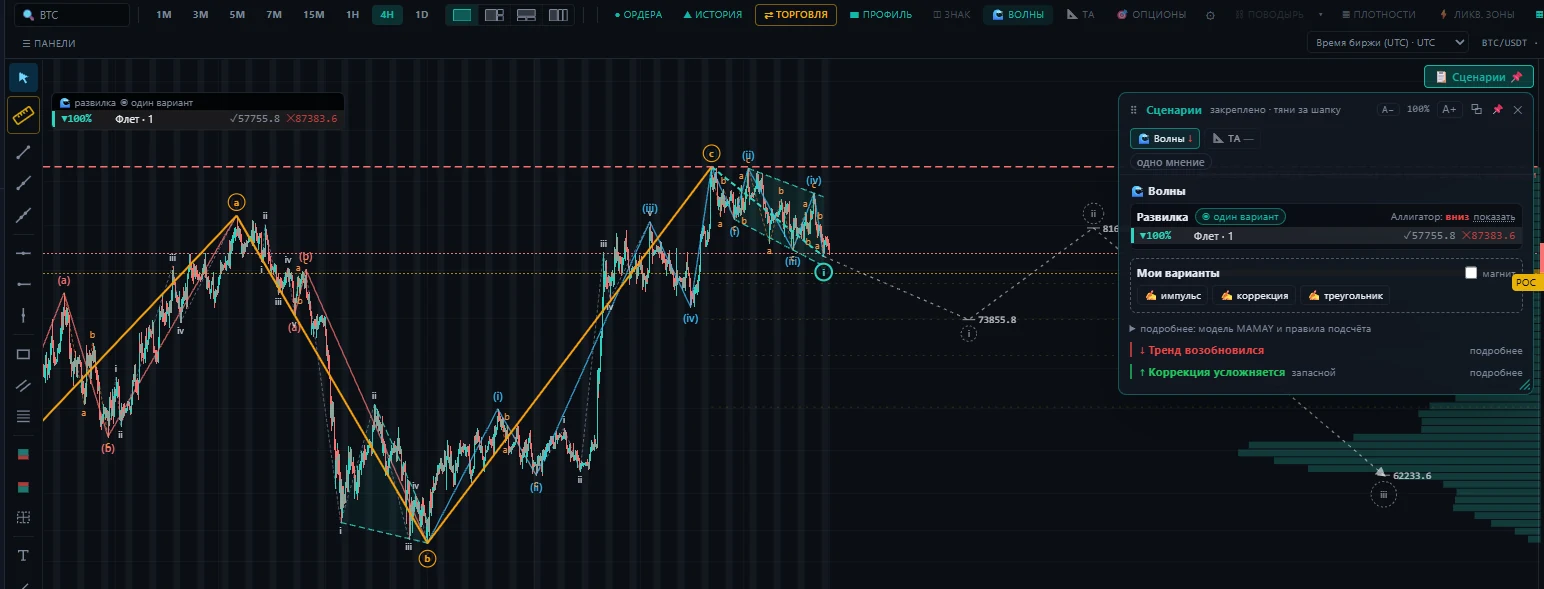
- Click "📋 Scenarios" on the chart.
- On a scenario with a side and levels, click "Accept scenario" — the entry, stop and target are filled into the panel.
- Choose "Size by risk" — 1%.
- Click the highlighted side button.
- The trade appears in the positions panel. When it closes, open "My trades: review" in the learning section.
What's next
- Once a week — "Journal" and "Signal performance".
- After every MAMAY update — the "What's new" item in the learning section: it says what has changed.
- A question about any screen — the "Mentor" button at the bottom right.